Which bookings need my action in the Dobovo owner app?
On the Bookings screen of the Dobovo owner app, open Requests. Check the property, dates, guest count and response deadline on the booking card. Availability requests and requests without prepayment require different actions.
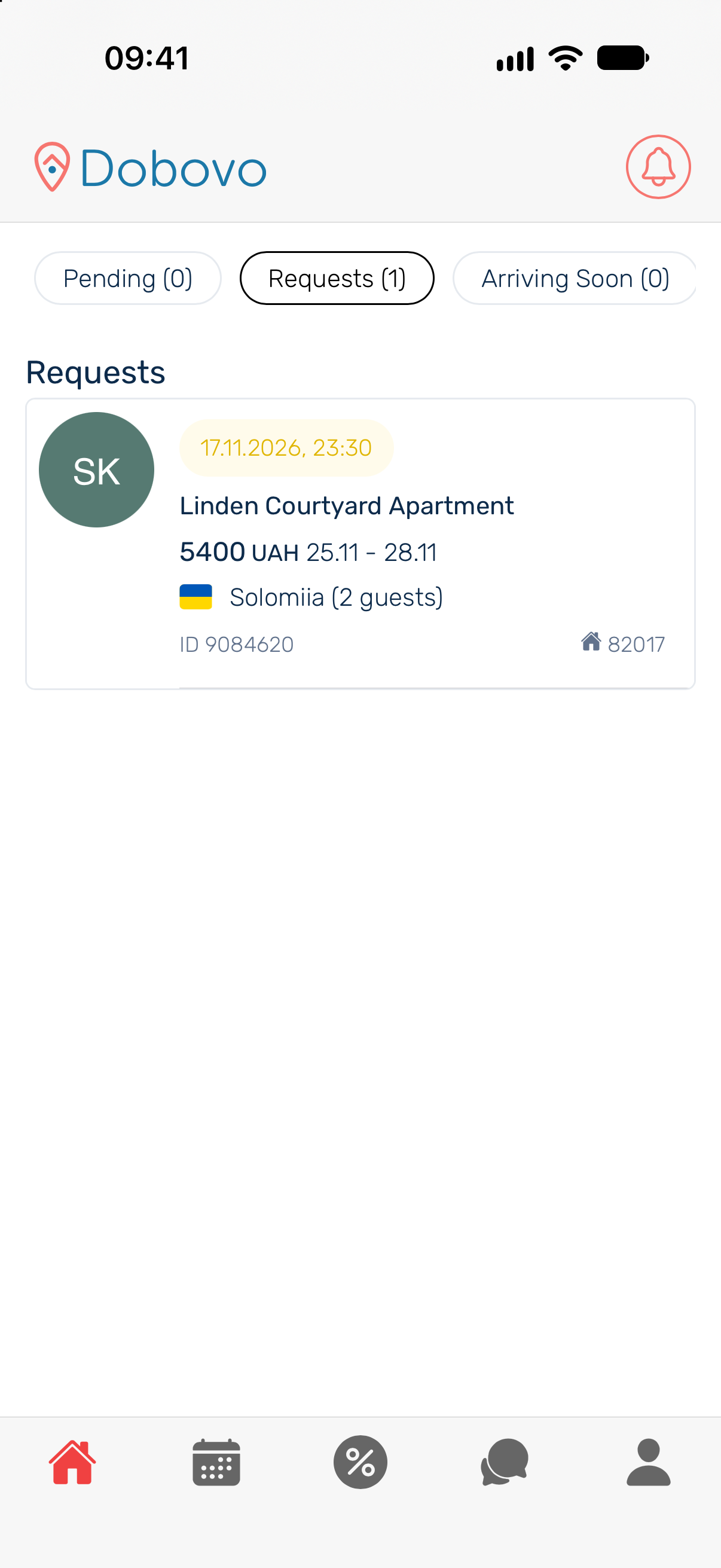
When the owner needs to respond
- Availability request. Check that you can host the guest for every night. Select Available or Unavailable according to your calendar. After you confirm availability, the guest may be asked to complete the next step. How to respond to an availability request.
- Request without prepayment. If the booking card offers confirmation or decline, check the terms and respond by the deadline shown on the card. Reopen the booking to verify its status after responding.
When the guest needs to act
Waiting for prepayment. Check the deadline and status on the card. If the guest says they already paid, check the booking status or message support with the booking number. How to cancel a booking waiting for prepayment.
When to prepare for check-in
Confirmed booking. Agree on arrival time, key handover and the remaining payment with the guest once the booking is confirmed. The same applies to a confirmed booking without prepayment. Where to find arrivals and departures.
Cancelled or missing request. Check the filter, the response deadline and Dobovo messages for the booking number. If you need to cancel a confirmed booking, follow the confirmed booking cancellation steps.

